Who is this switch best for?
- Office LAN expansion
- CCTV and IP camera networks
- WiFi access point connectivity

Works with standard Ethernet networking equipment including routers, computers, IP cameras, access points and servers. Confirm port, PoE and mounting requirements before purchase.
Check the product label or manufacturer datasheet for exact input voltage, power adapter and PoE requirements.
The MikroTik RB260GS, product code CSS106-5G-1S, is a compact smart switch for homes, small offices, branch locations, and workspaces that need configurable Ethernet connectivity with a fiber connection option.
It combines five Gigabit Ethernet ports with one separate SFP port, giving you six network interfaces in total. Its browser-based SwOS operating system provides switching controls without requiring a RouterOS configuration.
Use the RB260GS to connect office computers, printers, storage equipment, and separately powered access points. With a compatible SFP module, it can also connect a small workgroup to an existing fiber network. The optical module is purchased separately. RB260GS
Request the MikroTik RB260GS price in Kenya from Network Switch Kenya. Confirm the exact product code, supplied accessories, and warranty terms when ordering.
Important: The SFP interface is for Gigabit connectivity, not a 10G SFP+ uplink. Passive PoE input powers the switch itself; it does not mean the RB260GS can power connected devices. RB260GS
An unmanaged switch offers basic connectivity. The RB260GS adds controls that help administrators organize how devices communicate.
SwOS supports VLAN filtering, port isolation, traffic mirroring, bandwidth limits, RSTP, IGMP snooping, and access control rules. These functions make it useful where a small network needs more deliberate administration. MikroTik Documentation
For example, a business can design separate staff and guest networks, restrict communication between selected ports, or investigate traffic through a monitoring connection.
A Separate Fiber Connection OptionA fiber uplink can connect a remote office area, workshop, or outbuilding to a suitable upstream network. It also allows all five copper ports to remain available for local equipment when the SFP interface carries the uplink.
The complete link needs compatible equipment at both ends. Before purchasing modules, confirm:
A matching connector alone does not establish compatibility. Optical power levels and the complete link specification also matter.
Local Browser AdministrationThe RB260GS is suitable for installations where the administrator wants to configure the switch locally. Its interface separates settings into tabs for functions such as links, forwarding, VLANs, monitoring, and system administration.
This model runs SwOS rather than RouterOS. RouterOS terminal commands and WinBox configuration procedures should not be used as setup instructions for it.
Compact PlacementThe desktop enclosure fits small workspaces where a full-size rack switch would be unnecessary. Place it near a group of workstations, inside a suitable indoor communications cabinet, or beside the router.
Keep the switch accessible for cable inspection and provide adequate airflow around its enclosure.
Connect computers, a printer, and shared storage through a central switch. Use the upstream router for internet access, address assignment, and firewall policies.
If you use a copper port for the router connection, four copper ports remain available for local devices. If you use the separate SFP interface as the uplink, all five copper ports remain available.
Branch Offices and Remote Work AreasA business can place the switch near equipment in another part of a building and connect it to the main network through suitable cabling.
Where fiber is appropriate, plan the cable route, termination, optical modules, and upstream interface together.
Guest and Staff Network SeparationA correctly designed VLAN installation can keep guest equipment separate from staff devices.
The router or firewall must support the corresponding VLAN interfaces and security policies. Creating VLANs on the switch alone does not establish internet access, DHCP service, or permitted communication between networks.
Surveillance and Access Point ConnectionsThe RB260GS can carry data for compatible cameras and wireless access points, but those devices need separate power.
For a compact switch with powered-device requirements, investigate the MikroTik RB260GSP. It is a different model, and its passive PoE output must be checked against the voltage and wiring requirements of each connected device.
Confirm the model. The RB260GS and RB260GSP have similar names but different power capabilities. Order CSS106-5G-1S when you need this RB260GS model.
Allow for expansion. Five copper ports may suit a small workgroup, but a larger office should consider a higher port count. Explore options such as the TP-Link TL-SG1016D 16-Port Gigabit Switch when more connections are needed.
Keep a suitable router. This switch does not replace the internet gateway. Routing, NAT, VPN services, and firewall policies require appropriate equipment elsewhere in the network.
Select power equipment carefully. Use the approved adapter or a verified compatible passive PoE source. Do not assume that an ordinary 48V PoE switch is suitable for its passive input.
Plan management access. Record the management address and keep administration on a trusted network.
Have the following ready:
Initially configure the switch on a simple connection before introducing VLANs or complex forwarding rules.
2. Power the Switch and Connect Your ComputerConnect the supplied adapter to the DC input and a suitable electrical outlet. Connect your computer to an Ethernet port.
For first access, MikroTik’s hardware instructions specify setting the computer to 192.168.88.2 and opening 192.168.88.1 in a browser. The documented username is admin; use the device label for any supplied password, or follow the documented blank-password procedure where applicable. Change the password immediately. MikroTik Documentation
For this direct connection, use a subnet mask of 255.255.255.0.
If your router already uses 192.168.88.1, keep the switch isolated from it until you have assigned the switch a different, unused management address.
3. Locate an Address Assigned by DHCPIf the switch is already connected to a network, it may have obtained another address. Check the router’s DHCP lease list or use MikroTik Neighbor Discovery to identify it.
SwOS provides static, DHCP-only, and DHCP-with-fallback address acquisition options. Choose an approach that keeps management access predictable. MikroTik Documentation
For a small business, a documented static address outside the DHCP pool or a suitable reservation can simplify future maintenance.
4. Secure and Identify the SwitchGive the device a descriptive identity, such as Reception-Switch or Workshop-Switch.
Set a strong administrator password. Record the management address securely and test access from the intended administrator computer.
Only restrict management by source address, port, or VLAN after confirming that the intended management path works.
5. Establish Basic ConnectivityConnect a router LAN port to an available Ethernet port on the switch.
Reconnect your computer using its normal network settings. On a DHCP-enabled network, it should receive its address from the router.
Test internet access, printing, and any shared resources before applying advanced settings. This creates a working baseline for troubleshooting.
6. Configure a Fiber Uplink If RequiredInsert a compatible SFP module and connect the appropriate fiber cable. Confirm that the far-end equipment and module match the link requirements.
Check link status and test traffic before removing an existing working connection.
Avoid leaving both copper and fiber connections between the same network segments unless the network has been designed to handle the redundant paths.
7. Plan VLAN MembershipA small installation might use:
VLANPurposeExample ports10Staff equipmentEthernet 2–320Guest equipmentEthernet 430Surveillance equipmentEthernet 5Tagged uplinkCarries required VLANsEthernet 1 or SFPThis is an example design, not a factory configuration.
Configure the corresponding networks on the router first. Decide how switch management will remain accessible throughout the changes.
8. Apply VLAN Settings CarefullySwOS uses both VLAN and VLANs tabs. Configure the VLAN membership table together with each port’s default VLAN, accepted frame types, and forwarding behavior.
Ordinary endpoint ports should accept and deliver traffic in the intended format. The uplink must carry the VLANs expected by the router or upstream switch.
Follow the CSS106 manual for the installed firmware. It documents version-specific behavior and management-access requirements, including how VLAN filtering affects untagged access. Keep a recovery connection available and test one port before changing the rest. MikroTik Documentation
9. Test and Back UpAfter configuration:
When updating software, select the package for the exact CSS106 hardware family. Older RB260 hardware uses different firmware, so do not choose a file solely because its name includes “RB260.”
If you need straightforward connectivity without switch configuration, compare the TP-Link TL-SG1005D at Orbitlink, the TL-SG1005D at Tawa, and the TP-Link LS1005G.
Orbitlink’s five-port Gigabit switch listing provides another option to review. Confirm the exact model and whether configurable management or a fiber interface is required.
PoE Switching OptionsFor installations that need to power endpoints, compare the TP-Link TL-SG1005P at Orbitlink and TL-SG1005P at Reisen SEO. Verify the hardware revision, supported PoE standards, and total power budget.
Within the UniFi range, investigate the UniFi Flex Mini and UniFi Flex. Their power capabilities differ, so distinguish PoE input from PoE output when selecting a model.
Fast Ethernet AlternativesFor legacy equipment, review the TP-Link TL-SF1005D at Orbitlink, Orbitlink’s five-port Fast Ethernet switch listing, and the TL-SF1005D at Tawa.
Consider their 100Mbps connection limits before choosing them for shared storage or large file transfers.
Routers for the Upstream NetworkFor routing duties, compare the MikroTik hEX RB750Gr3, MikroTik hEX E50UG, and MikroTik hEX S RB760iGS.
The MikroTik RB951Ui-2HnD is another router option to assess against your wireless and interface requirements. These devices serve a different role from the RB260GS.
Confirm the supplied package before ordering. Plan separately for Ethernet patch cables, compatible optical modules, fiber patch leads, and cable management accessories.
If continuity during power interruptions matters, consider backup power for the complete connection, including the router, switch, and optical equipment at both ends.
Is the RB260GS a five-port or six-port switch?
It has five copper Ethernet ports plus one separate SFP interface.
Does it provide Wi-Fi?
No. Connect a separate wireless access point.
Can it replace my router?
No. Keep a suitable router or firewall for internet access and routing services.
Can I configure it using WinBox?
Use the SwOS browser interface for configuration. It does not run RouterOS.
Can it power a PoE camera?
No. Its passive PoE input powers the switch itself; it has no PoE output.
Is an SFP module included?
MikroTik lists the optical modules separately. Confirm your order contents and purchase a compatible module for the intended link.
What is the price in Kenya?
Request a current quotation from Network Switch Kenya, including any optical modules or installation accessories required.
Choose the MikroTik RB260GS when you need a compact smart switch with local management and a Gigabit fiber connection option.
Visit the MikroTik RB260GS product page or Network Switch Kenya to request pricing and confirm the equipment needed for your installation.
MikroTik RB260GS 5-Port Gigabit SFP Smart Switch Price in Kenya is currently listed as available. Stock can change, so confirm availability before placing a large order.
The current listed price is KSh 6,000.00. Prices are generated from the product catalogue and may change when inventory is updated.
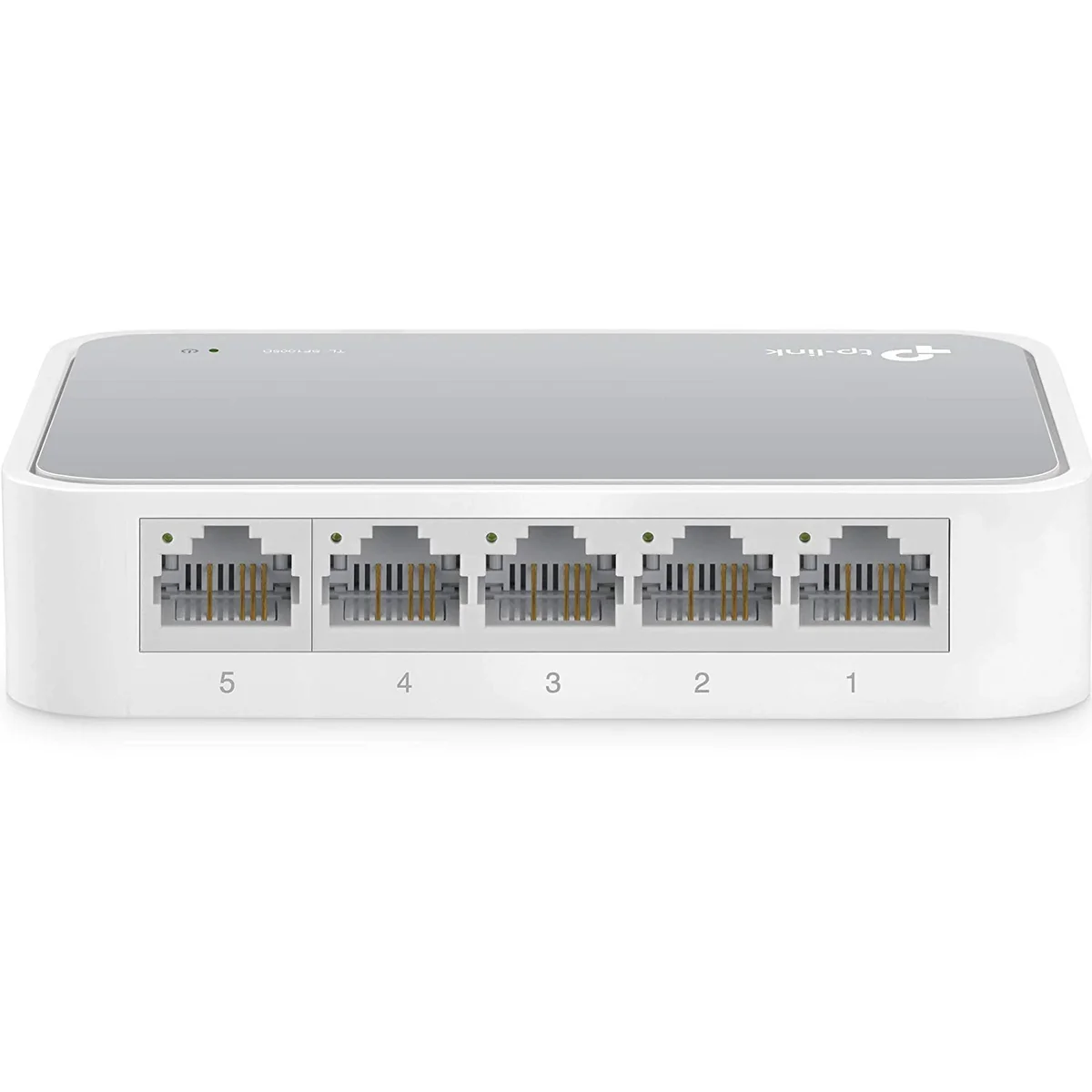
TP-Link
5-Port | Fast Ethernet | Unmanaged
In Stock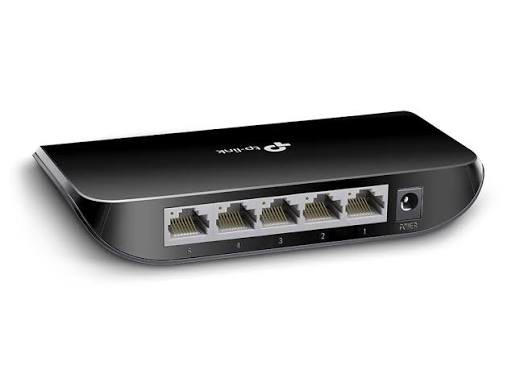
TP-Link
5-Port | Gigabit | Unmanaged
In Stock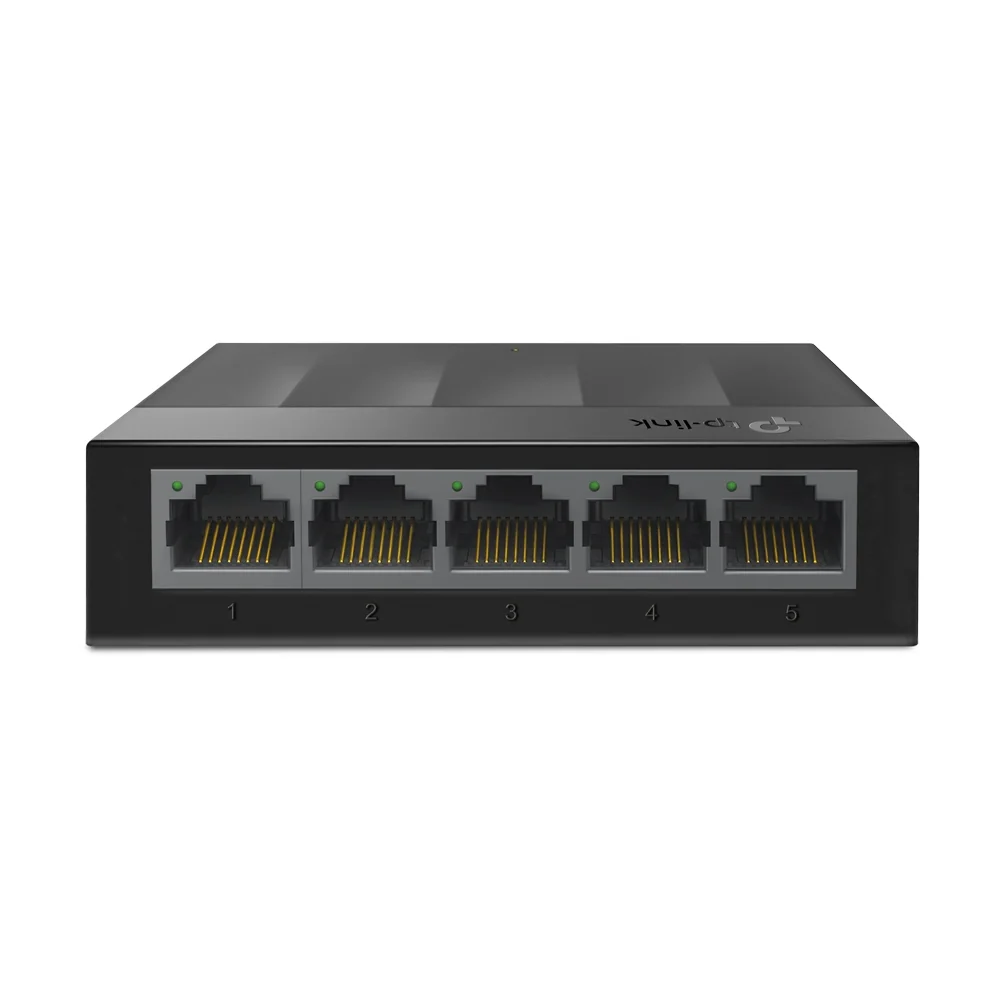
TP-Link
5-Port | Gigabit | Unmanaged
In Stock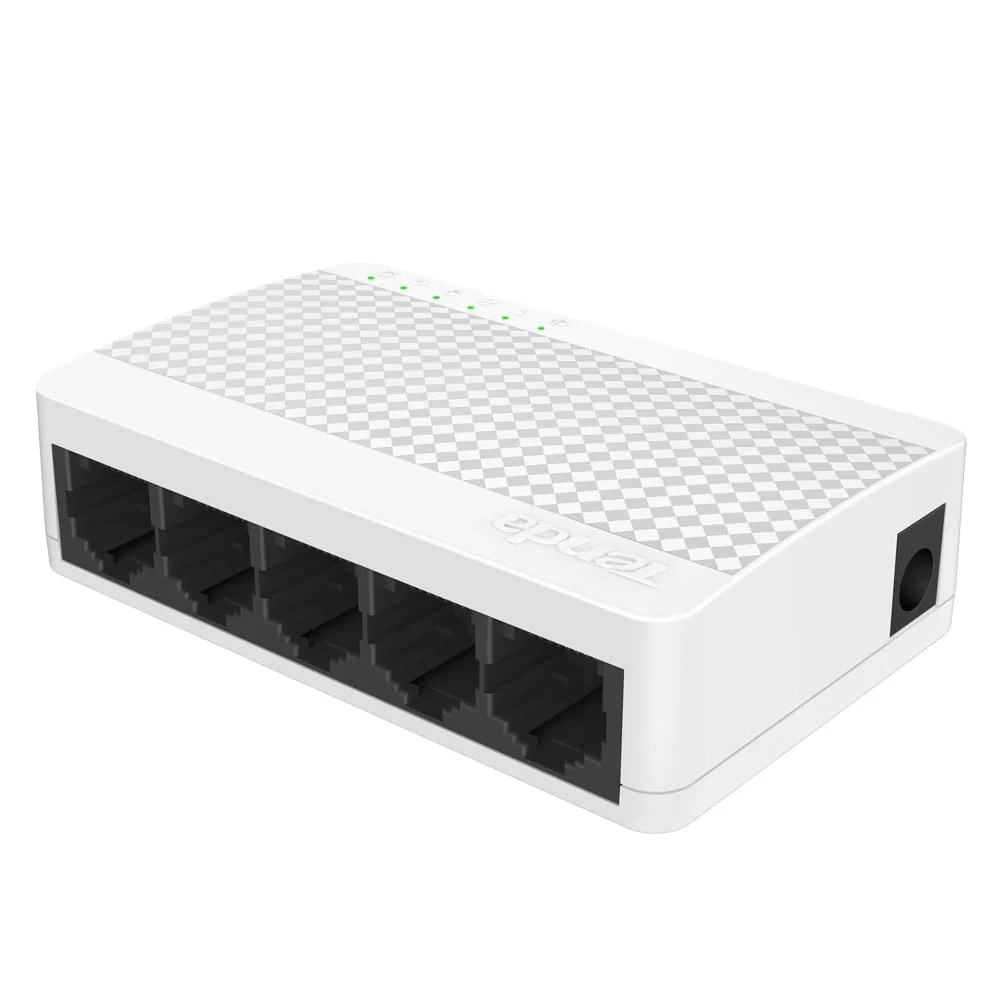
Tenda
5-Port | Fast Ethernet | Unmanaged
In Stock