Who is this switch best for?
- Office LAN expansion
- CCTV and IP camera networks
- WiFi access point connectivity
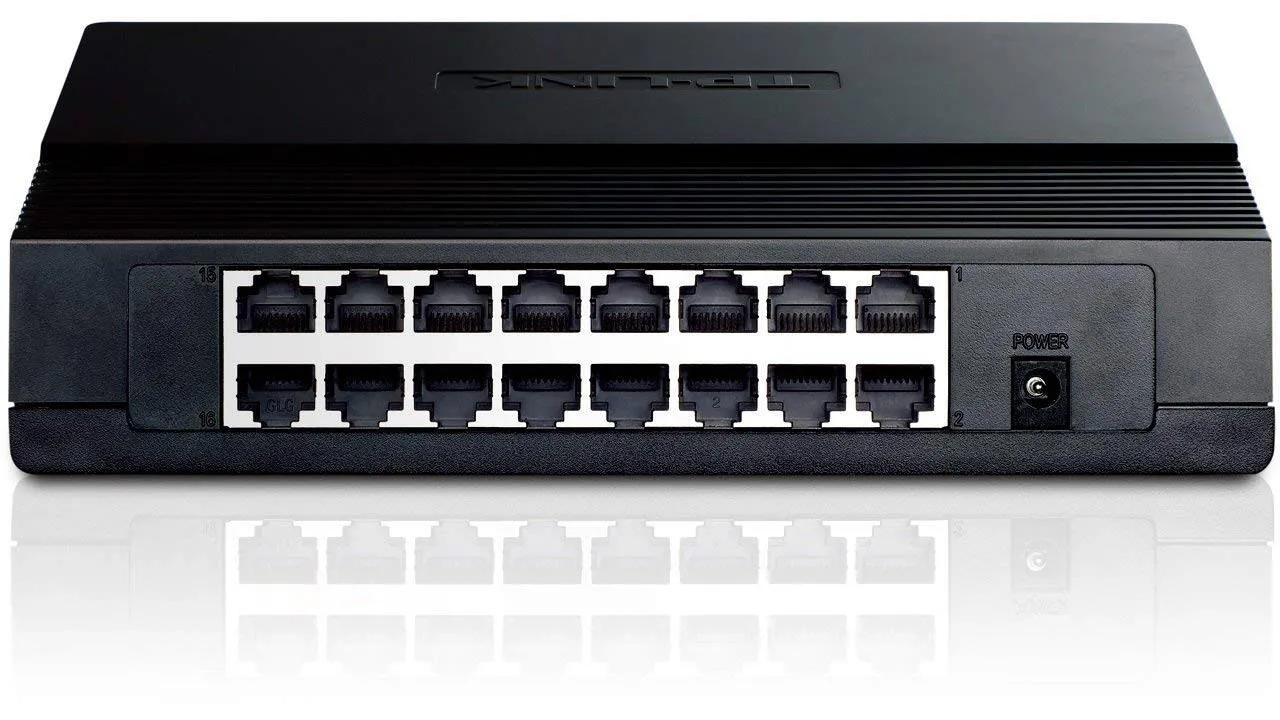
Works with standard Ethernet networking equipment including routers, computers, IP cameras, access points and servers. Confirm port, PoE and mounting requirements before purchase.
Check the product label or manufacturer datasheet for exact input voltage, power adapter and PoE requirements.
The TP-Link TL-SF1016D is a straightforward solution for expanding wired connectivity in small offices, shops, classrooms and home workspaces. Its 16 Fast Ethernet ports connect computers, printers and other Ethernet equipment to an existing network without requiring switch configuration.
The compact plastic enclosure supports desktop or wall placement, while fanless cooling keeps operation quiet. It suits installations where ease of use and additional connections matter more than high-speed file transfers. TP-Link
Each port supports a maximum connection speed of 100Mbps. Before buying, assess your internet service and local-network workload: businesses transferring large files or using shared storage may benefit from a Gigabit switch.
View the TP-Link TL-SF1016D at Network Switch Kenya and request a quotation confirming the hardware version, power adapter, warranty and delivery arrangements.
Physical and electrical figures above follow TP-Link’s V7 specifications. Confirm the supplied hardware revision before purchase. TP-Link
Version differences: TP-Link’s V6 datasheet specifies a 9V, 0.6A adapter and 3.2Gbps switching capacity. Use the adapter specified for the actual unit rather than assuming different revisions have interchangeable power supplies. static.tp-link.com
The switch provides room for several workstations and supporting devices in one location. It can help an office move beyond the limited number of LAN ports available on a router.
Plan the connections before installation. With one port connected to your router, 15 ports remain for computers, printers and other equipment. Connections to additional switches also consume ports.
Simple Everyday OperationFor an ordinary LAN, connect the switch to a configured router and attach your devices. Your router continues handling internet access, DHCP addressing and firewall protection.
This arrangement suits users who need additional Ethernet connections without learning a switch-management interface.
Quiet and Compact PlacementThe desktop format is useful where a full rack installation is unnecessary. Position it near a group of workstations or on a suitable equipment shelf, with space for cabling and ventilation.
Wall placement can keep the unit away from a busy desk. Follow the mounting instructions for the supplied revision and use fixings appropriate for the surface.
Connect Older Ethernet EquipmentThe switch can support compatible devices operating at either 10Mbps or 100Mbps. This makes it useful for existing equipment whose applications do not require Gigabit connectivity.
For a higher-speed alternative, compare the supplied D-Link DGS-1016D 16-Port Gigabit Unmanaged Switch at Tawa.
Connect workstations, printers and other Ethernet devices used for routine browsing, email and office applications.
If several employees regularly transfer large files, consider the effect of the 100Mbps connection limit before selecting this model.
Schools and Training RoomsUse the switch for a modest classroom network where basic connectivity meets the teaching requirements.
Include the router, teacher’s computer and printer when calculating the number of available connections. Simultaneous software deployment or access to large resources may justify a faster switch.
Shops and Service BusinessesConnect compatible POS terminals, administrative computers and printers. Configure addressing and application access according to the business-system provider’s requirements.
Where payment equipment, guest access and staff systems need enforced separation, use a suitable managed network design.
Home OfficesThe TL-SF1016D can expand connections for several wired devices in a home workspace. Check your internet speed and local transfer requirements before choosing Fast Ethernet.
Separately Powered Network DevicesThe switch can carry data for compatible cameras, access points and IP phones, but these devices need their own suitable power arrangements.
For an installation requiring Ethernet power and network management, assess the supplied UniFi Pro Max 16 PoE as a separate alternative.
You will typically need:
Keep each standard copper Ethernet channel within 100 metres. Use properly terminated cables and inspect damaged plugs before connecting them.
2. Check the Hardware Version and AdapterRead the model and hardware-version label on the switch.
Confirm that the adapter matches the unit’s required voltage, polarity and current rating. V6 and V7 documentation specifies different output voltages, so do not substitute an adapter simply because its connector fits.
3. Position the SwitchPlace it on a stable surface with room for cable access and ventilation.
For wall mounting, follow the supplied guide and use suitable fixings. Avoid moisture, direct heat and locations where cables could be pulled accidentally.
If installed inside a cabinet, place it on a suitable shelf rather than assuming it includes rackmount brackets.
4. Connect PowerConnect the correct adapter to the switch and a suitable mains outlet. Check that the power indicator illuminates.
For backup operation, include the router and essential connected equipment in your power plan. Keeping only the switch powered will not preserve internet access if the router shuts down.
5. Connect the RouterConnect a router LAN port to an available switch port using an Ethernet cable.
The router should already have working internet access and, for a typical small-office setup, an enabled DHCP server.
The supplied MikroTik hEX S E60iUGS router listing is an option to assess separately. A faster router cannot raise the TL-SF1016D’s port speeds above 100Mbps.
6. Connect End DevicesAttach computers, printers and other Ethernet equipment to the remaining ports.
In a building with structured cabling, connect switch ports to the patch panel and equipment to the corresponding wall outlets. Label connections to make later troubleshooting easier.
PoE-powered devices require suitable separate injectors or a PoE switch. Confirm their power requirements before selecting accessories.
7. Confirm IP AddressingSet computers to obtain an IP address automatically where the router provides DHCP.
For printers and other devices requiring consistent addresses, use DHCP reservations or an appropriate static-address plan. Avoid duplicate addresses.
The TL-SF1016D does not require a management IP address for ordinary switching.
8. Test ConnectivityCheck the link indicators, then confirm that a connected computer can:
A negotiated speed of 100Mbps is normal. If equipment connects at only 10Mbps, inspect the cable, connectors and network-adapter settings.
9. Prevent Cabling LoopsDo not connect switch ports directly back into one another. Avoid duplicate links between switches unless the network is specifically designed to support them.
For a straightforward installation, use one planned uplink and label it clearly.
10. Record the InstallationDocument port assignments, cable routes and equipment locations. Keep the hardware version and adapter specifications with your purchase records.
This makes maintenance easier and helps prevent the wrong power adapter being used later.
For a faster network with the same port count, compare the TP-Link TL-SG1016D 16-Port Gigabit Switch. If you need more Fast Ethernet connections, consider the TP-Link TL-SF1024D 24-Port Switch.
TP-Link’s V6 documentation lists:
Confirm the package, adapter rating and regional plug type for the supplied revision. Ethernet cables and the router should be budgeted separately unless included in your quotation. static.tp-link.com
No. Its ports support 10/100Mbps connections.
Can Gigabit-capable computers connect?Yes, where their adapters support negotiation to 100Mbps. They will operate at the switch’s supported speed.
Can it provide internet access?It can distribute connectivity from a configured router. It does not establish an internet connection by itself.
Can it power cameras or access points?No. Use compatible separate power supplies, injectors or a PoE switch.
Does it provide Wi-Fi?No. Wireless access requires a separate access point.
Can I connect 16 computers and a router?The router connection uses one of the 16 ports, leaving 15 for computers or other equipment.
Is full-duplex operation a 200Mbps connection?At a 100Mbps full-duplex link, the device can send and receive simultaneously at up to 100Mbps in each direction. It does not provide a 200Mbps one-way connection. static.tp-link.com
Expand your wired network with the TP-Link TL-SF1016D 16-Port 10/100Mbps Desktop Switch from Network Switch Kenya.
Request a quotation confirming the hardware revision, power adapter, warranty and delivery arrangements. Browse Network Switch Kenya for Gigabit, managed and PoE alternatives.
TP-Link TL-SF1016D Price in Kenya | 16-Port Desktop Switch
Buy TP-Link TL-SF1016D 16-Port 10/100Mbps Desktop Switch in Kenya. Expand your wired network with simple plug-and-play setup from Network Switch Kenya.
TP-Link TL-SF1016D 16-Port 10/100Mbps Desktop Switch Price in Kenya is currently listed as available. Stock can change, so confirm availability before placing a large order.
The current listed price is KSh 2,500.00. Prices are generated from the product catalogue and may change when inventory is updated.
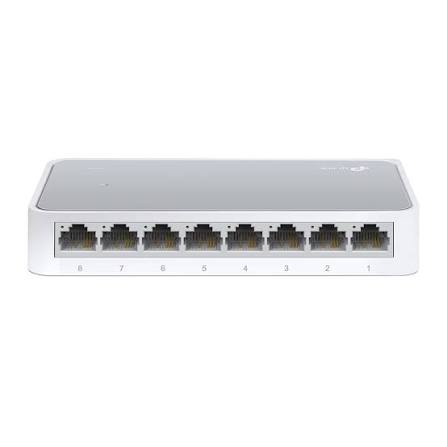
TP-Link
8-Port | Fast Ethernet | Unmanaged
In Stock
TP-Link
8-Port | Gigabit | Unmanaged
In Stock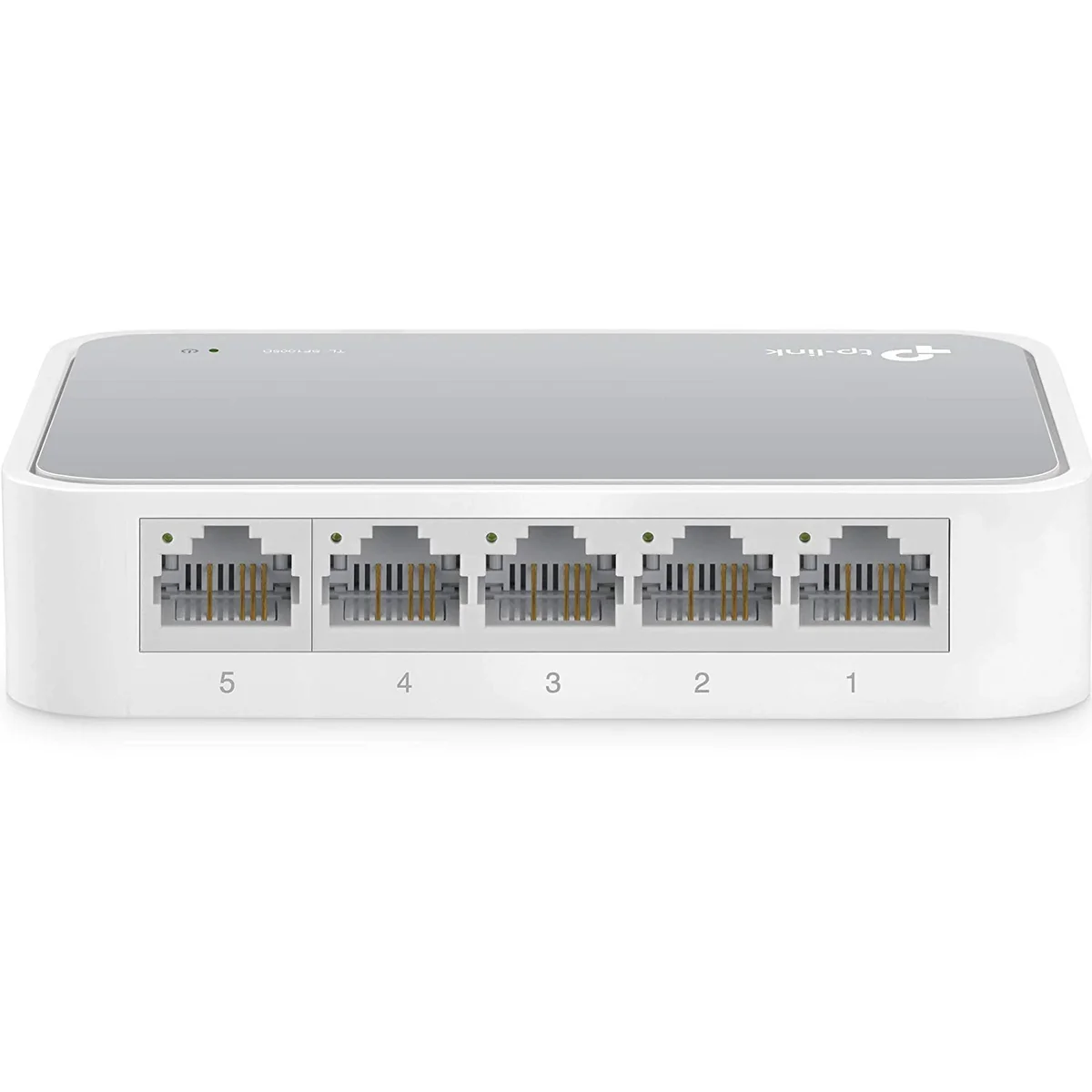
TP-Link
5-Port | Fast Ethernet | Unmanaged
In Stock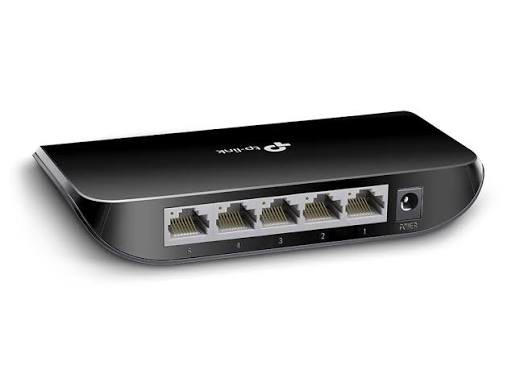
TP-Link
5-Port | Gigabit | Unmanaged
In Stock