Who is this switch best for?
- Office LAN expansion
- CCTV and IP camera networks
- WiFi access point connectivity
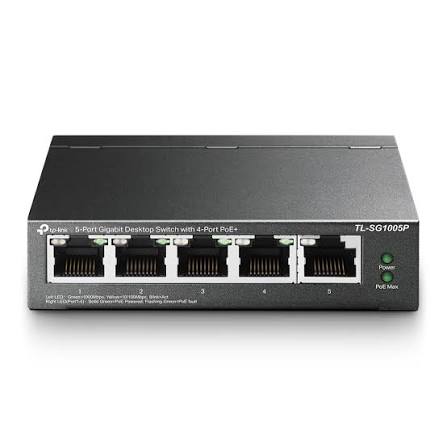
Works with standard Ethernet networking equipment including routers, computers, IP cameras, access points and servers. Confirm port, PoE and mounting requirements before purchase.
Check the product label or manufacturer datasheet for exact input voltage, power adapter and PoE requirements.
The TP-Link TL-SG1005P 5-Port Gigabit PoE+ Switch connects a small group of network devices while supplying power to compatible cameras, wireless access points, and IP phones through their Ethernet cables.
It is a practical choice for offices, shops, reception areas, and small surveillance installations where running a separate electrical connection to every device would complicate installation. Connect the switch to your router or existing network, then connect compatible powered devices to its PoE ports.
Its unmanaged design keeps everyday installation straightforward. You do not need to assign the switch a management address, install a controller, or configure a browser dashboard for basic operation.
Request the TP-Link TL-SG1005P price in Kenya from Network Switch Kenya. Confirm the hardware version when ordering: older versions have different power capabilities, and the original V1 model was specified for 802.3af PoE with a 56W budget. static.tp-link.com
The specifications below follow TP-Link’s V5 documentation. Confirm that the supplied revision matches your requirements.
SpecificationDetailsModelTP-Link TL-SG1005PSwitch categoryUnmanaged desktop switchNetwork ports5 × 10/100/1000Mbps RJ45PoE+ portsPorts 1–4Non-PoE portPort 5Supported power standardsIEEE 802.3af/atMaximum PoE output per port30WTotal PoE budget65W shared across powered portsSwitching capacity10GbpsPacket forwarding rate7.44MppsMAC address table2K entriesCoolingFanlessDimensions99.8 × 98 × 25mmExternal adapter output53.5V DC, 1.31AAdditional V5 functionsExtend Mode and PoE Auto RecoveryOperating temperature0–40°CThe shared power budget matters: four ports rated for up to 30W each cannot all supply their maximum simultaneously within a 65W total budget. TP-Link South Africa
PoE reduces the need for separate adapters beside compatible equipment. This can make installation easier when placing an access point on a ceiling or a camera above an entrance.
The connected device must support the appropriate power standard. Check its datasheet before installation, especially when replacing a passive PoE injector.
The switch’s standard PoE+ output should not be treated as a direct substitute for every 24V passive PoE supply.
Connect a Small Group of DevicesA typical installation uses port 5 for the router or upstream connection, leaving the four powered ports available for endpoints.
For example, you could connect two suitable cameras, an access point, and an IP phone, provided their combined power requirements fit the available budget.
If the installation needs only ordinary data connections, compare the TP-Link TL-SG1005D or TP-Link LS1005G.
Keep Installation SimpleThe TL-SG1005P suits buyers who want to add powered connections without configuring a managed switch.
This simplicity also defines its limits. It does not provide a management interface for creating VLANs, reviewing detailed port statistics, or applying administrator-defined access policies.
Choose a managed model if those functions form part of your network design.
Support Everyday Wired ApplicationsA wired connection is useful for equipment that stays in a fixed location, such as a desk phone, camera, or access point.
Actual application performance depends on the complete network. Cabling, endpoint capabilities, the router, and internet service can all affect results. The switch does not increase your internet subscription speed.
Use it to connect compatible IP cameras to a network containing recording or viewing equipment.
Before installation, check each camera’s maximum power requirement, including infrared lighting, heaters, or other functions that may increase consumption. A camera’s daytime power draw may be lower than its nighttime requirement.
The switch supplies connectivity and power; recording still requires a suitable NVR, server, storage service, or other supported recording arrangement.
Wireless Access Point ConnectionsInstall compatible access points where coverage is needed without placing a separate power adapter beside each one.
The access point’s own setup remains necessary. Depending on the model, this may include configuring a wireless network name, security settings, and a management platform.
IP Phone DeploymentCompatible desk phones can receive network access and power through one cable. This helps organize small reception areas, service desks, or workgroups.
Telephone service still requires the appropriate PBX, hosted platform, or SIP configuration.
Small Office ExpansionThe switch can serve a small group of devices near a single existing network connection. This is useful when a workspace needs powered equipment but has limited available router ports.
For additional data-only connections elsewhere, explore the TP-Link TL-SG1008D 8-Port Gigabit Desktop Switch.
Add together the maximum specified power requirements of the devices you intend to connect. Account for cable losses, startup behavior, and any additional power reservations described by the device manufacturers.
An illustrative load might be:
Connected deviceExample maximum requirementCamera 110WCamera 210WWireless access point18WIP phone7WCombined endpoint requirement45WThese figures are planning examples, not specifications for particular products.
Leave operating headroom rather than designing around the exact maximum. If your equipment exceeds either the per-port limit or total budget, choose a higher-capacity power solution.
Read the labels and datasheets for every device you plan to power.
Confirm:
Do not assume that a device is compatible simply because it has an Ethernet socket.
2. Prepare the EquipmentYou will need the switch, its correct power adapter, reliable Ethernet cables, and a working router or upstream network connection.
Use suitable Cat5e or Cat6 cabling. For permanent installations, choose correctly specified cable and terminate all pairs properly.
Avoid substituting an adapter merely because its plug fits. The power supply must match the manufacturer’s requirements.
3. Position the SwitchPlace it indoors on a stable surface with ventilation around the enclosure. Keep it away from moisture, excessive heat, and locations where cables could be pulled.
Leave access to the ports and indicators so you can check connections later.
For backup operation, plan a UPS for the switch and any other equipment needed to keep the service working, including the router and recording equipment.
4. Connect PowerAttach the correct external adapter to the switch and then connect it to the electrical outlet.
Check the power indicator. If it does not illuminate, verify the outlet, adapter connection, and power supply before connecting the rest of the equipment.
5. Connect the Upstream NetworkConnect port 5 to a LAN port on your router or an appropriate port on the upstream switch.
An example connection plan is:
PortExample use1PoE camera2PoE camera3Compatible wireless access point4Compatible IP phone5Router or upstream networkThe router normally supplies internet access and DHCP services. The switch itself does not replace those functions.
6. Add Powered Devices One at a TimeConnect the first compatible device to a powered port and confirm that it starts correctly.
Continue with the remaining devices, checking their operation after each connection. This makes it easier to identify a compatibility, cabling, or power-budget problem.
A standard non-PoE Ethernet device can also use a powered port for data; standards-based PoE detection does not intentionally supply power to an ordinary non-PoE endpoint.
7. Complete Endpoint ConfigurationThe switch may require no software setup, but connected equipment often does.
For example:
Test each device from the computer or application that will manage it.
8. Check Revision-Specific FunctionsSome revisions provide physical controls for extended-distance operation or automatic recovery. Use the installation guide matching the version printed on your switch.
Extend Mode is intended for specific longer-distance applications and involves a speed tradeoff. Do not assume an extended connection retains Gigabit performance.
If PoE Auto Recovery is available, assess whether automatic endpoint restarts suit the equipment and service. Recovery features do not correct faulty cables, inadequate power planning, or incorrect endpoint configuration.
9. Test Under Real Operating ConditionsTest the installation when devices are working normally, rather than only checking that they power on.
For cameras, verify nighttime operation where applicable. For access points, test connected clients. For phones, place calls and check audio.
Label cables and record which device connects to each port.
Review the TP-Link TL-SG1005P at Orbitlink and TL-SG1005P at Reisen SEO when checking product identity. Confirm the revision, included power supply, and warranty rather than assuming all listings represent identical hardware.
Data-Only Gigabit AlternativesIf connected devices already have their own power supplies, consider the TP-Link TL-SG1005D at Tawa or Orbitlink’s five-port Gigabit switch listing.
UniFi and Passive PoE OptionsFor a UniFi installation, compare the UniFi Flex Mini and UniFi Flex. Their power-input and power-output capabilities differ, so assess each model separately.
The MikroTik RB260GSP is another option to investigate where passive PoE is specifically required. Its power system should not be treated as interchangeable with standard 802.3af/at PoE+.
Fast Ethernet AlternativesFor legacy data-only equipment, review the TP-Link TL-SF1005D at Orbitlink, Orbitlink’s five-port Fast Ethernet switch, and the TL-SF1005D at Tawa. Consider their speed and power capabilities before choosing them for the same installation.
Routers for the Upstream ConnectionFor internet gateway duties, compare the MikroTik hEX RB750Gr3, hEX E50UG, and hEX S RB760iGS.
The MikroTik RB951Ui-2HnD is another router option to assess against your wireless and interface requirements.
Confirm that your order includes the correct switch revision, compatible power adapter, and installation documentation.
Plan separately for Ethernet cables, permanent cabling work, mounting accessories for endpoints, and backup power where needed.
Are all five ports PoE+?
No. On the specified revision, ports 1–4 provide PoE+, while port 5 is a data-only connection.
Can it power four devices at their individual maximum simultaneously?
Only if their combined requirements remain within the shared budget. The individual port rating does not multiply into the available total.
Does it need an IP address?
No management address is required for ordinary operation.
Can it power 24V passive PoE equipment directly?
Do not assume compatibility. Use the power source specified by the endpoint manufacturer.
Does it provide Wi-Fi?
No. Connect a compatible wireless access point.
What is the price in Kenya?
Request a current quotation from Network Switch Kenya and confirm the hardware revision and supplied accessories.
Choose the TP-Link TL-SG1005P for a small installation that needs straightforward Ethernet connectivity and standards-compatible PoE power.
Visit Network Switch Kenya for a quotation. If you need data connections without PoE, compare the TP-Link TL-SG1005D 5-Port Gigabit Desktop Switch.
TP-Link TL-SG1005P 5-Port Gigabit PoE+ Switch Price in Kenya is currently listed as available. Stock can change, so confirm availability before placing a large order.
The current listed price is KSh 8,000.00. Prices are generated from the product catalogue and may change when inventory is updated.
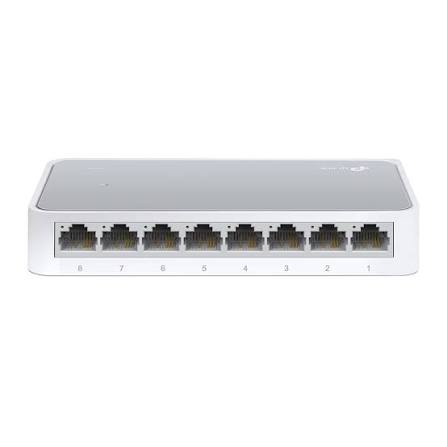
TP-Link
8-Port | Fast Ethernet | Unmanaged
In Stock
TP-Link
8-Port | Gigabit | Unmanaged
In Stock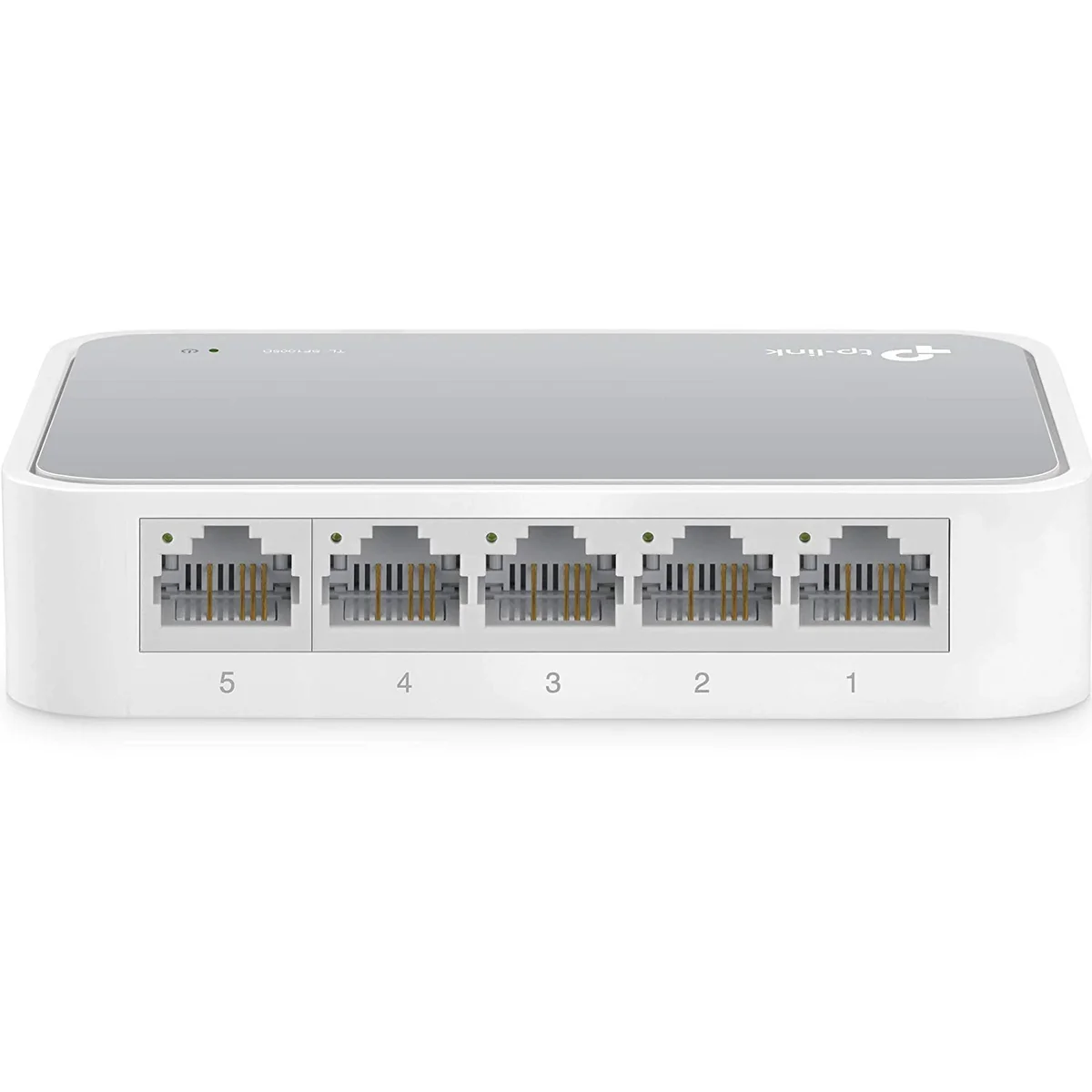
TP-Link
5-Port | Fast Ethernet | Unmanaged
In Stock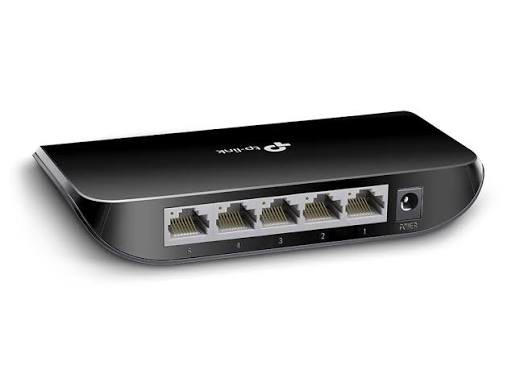
TP-Link
5-Port | Gigabit | Unmanaged
In Stock