Who is this switch best for?
- Office LAN expansion
- CCTV and IP camera networks
- WiFi access point connectivity
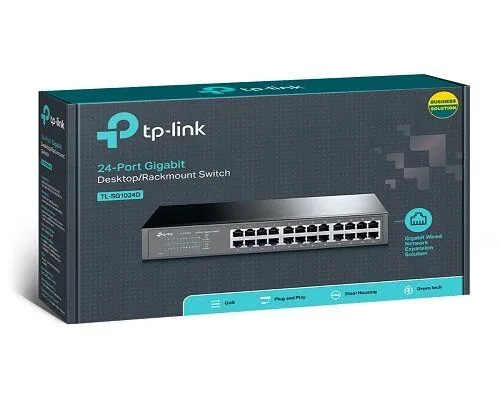
Works with standard Ethernet networking equipment including routers, computers, IP cameras, access points and servers. Confirm port, PoE and mounting requirements before purchase.
Check the product label or manufacturer datasheet for exact input voltage, power adapter and PoE requirements.
The TP-Link TL-SG1024 provides a straightforward way to expand wired connectivity in offices, schools, shops and other business premises. Its 24 Gigabit Ethernet ports accommodate computers, printers, network storage and other Ethernet equipment, while its unmanaged design keeps everyday installation simple.
It is particularly useful when upgrading an existing Fast Ethernet network or bringing several smaller groups of devices into one central cabinet. Connect the switch to your router and attach your equipment without configuring switch-management software. TP-Link United Kingdom
Explore the TP-Link TL-SG1024 at Network Switch Kenya and request a quotation confirming the hardware revision, supplied accessories, warranty and delivery arrangements.
Specifications follow TP-Link’s documentation. The 48Gbps figure describes aggregate switching capacity; an individual port supports up to 1Gbps. Power consumption and additional functions depend on the supplied hardware revision. TP-Link United Kingdom
Gigabit Ethernet provides more connection capacity than 100Mbps Fast Ethernet, which can help when transferring files, accessing shared storage or connecting several workstations.
Actual performance still depends on the computers, storage devices, cables and network design. Installing a Gigabit switch does not increase internet speed beyond the service supplied by your ISP.
A Central Connection PointConsolidating connections into one switch can make an office network easier to organise. It also helps keep patch leads accessible beside a labelled patch panel.
Plan the port count carefully. With one port reserved for the router, 23 ports remain for other devices. Servers, access points and connections to additional switches also use ports.
Straightforward OperationThe unmanaged design suits installations where the main requirement is expanding an existing LAN. Your router continues handling addressing, internet access and firewall protection.
For networks needing configurable VLANs, access controls or detailed monitoring, compare a managed alternative such as the supplied D-Link managed Gigabit switch listing at Tawa.
Quiet Rack InstallationThe documented fanless design avoids cooling-fan noise, making placement near workspaces more practical. The switch still needs ventilation and should be installed away from excessive heat and moisture.
Use the correct mounting brackets and allow room for cable access.
Additional Functions on Supported RevisionsTP-Link documents 802.1p/DSCP traffic prioritisation for V11 and later TL-SG1024 versions. Its V16 datasheet also lists port isolation and loop-prevention functions.
These features should be confirmed against the actual unit. Port isolation can affect communication between connected devices, so check the supplied guide before enabling it. They do not provide the full configuration options of a managed switch. static.tp-link.com
Connect workstations, network printers and shared storage to a central wired network. Leave spare ports for equipment added as the business grows.
Schools and Computer LaboratoriesUse the switch to connect classroom computers and teaching equipment. Include the router connection, teacher’s workstation and printers when calculating capacity.
For simultaneous software deployment or large transfers, assess the performance of the server and the connection carrying shared traffic.
Shops and Service BusinessesConnect compatible POS terminals, printers and administrative computers. Configure addressing and application access according to the business-system provider’s requirements.
If payment equipment, guest access and office devices need separate networks, choose equipment that supports the required segmentation.
Network Storage and Local BackupsThe switch can connect Ethernet-equipped storage systems and computers. For frequent large backups, check whether a shared 1Gbps storage connection will meet your requirements.
Keep backup scheduling and storage performance in mind when assessing transfer speeds.
CCTV and Access-Point Data ConnectionsThe TL-SG1024 can carry network traffic for IP cameras and wireless access points, but those devices require separate suitable power arrangements.
For installations that need power delivered through Ethernet, compare the supplied UniFi Pro Max 24 PoE with your device power and management requirements.
You will typically need:
For Gigabit Ethernet, use properly terminated cables with all four wire pairs connected. Keep each standard copper Ethernet channel within 100 metres.
2. Mount or Position the SwitchFor rack installation, fit the supplied brackets and secure the switch using hardware appropriate for the cabinet.
For a permitted desktop arrangement, use a stable surface and the supplied rubber feet. Follow the installation guide for the actual hardware revision.
Keep ventilation openings clear and support cable bundles so their weight does not pull on the ports.
3. Check Any Physical Mode ControlsInspect the switch for mode controls and read the guide supplied with it.
For an ordinary LAN where devices need to communicate with one another, begin with the normal operating mode. If your revision includes isolation or loop-prevention controls, understand their effects before changing them.
Do not assume that every TL-SG1024 revision has the same controls.
4. Connect PowerConnect the supplied mains cord to the switch and a suitable outlet or UPS. Check that the power indicator turns on.
If continuous internet access matters, provide backup power for the router and other essential equipment as well as the switch.
5. Connect the RouterConnect a LAN port on your router to any suitable available switch port.
The router should already have a working internet connection. In a typical office network, its DHCP server assigns addresses to connected devices.
The supplied MikroTik hEX PoE RB960PGS listing is a router option to evaluate separately. Using a PoE-capable router does not make the TL-SG1024’s other ports provide PoE.
6. Connect End DevicesAttach computers, printers, storage systems and other equipment to the remaining ports.
For structured cabling, connect switch ports to the patch panel and equipment to the corresponding wall sockets. Label both ends of each connection.
Cameras, phones and access points that need PoE require compatible injectors or a separate PoE switch.
7. Confirm AddressingSet computers to obtain an IP address automatically if your router provides DHCP.
Use DHCP reservations or an appropriate static-address plan for equipment needing consistent addresses. Avoid duplicate IP addresses.
The switch does not require a management IP address for normal unmanaged operation.
8. Test Connection SpeedsCheck the link indicators and the negotiated speed shown by a connected computer.
If a Gigabit-capable device connects at only 100Mbps:
Keep automatic negotiation enabled unless a specific troubleshooting requirement justifies a change.
9. Test Local and Internet AccessConfirm that a computer can reach the router, access the internet and communicate with permitted local devices.
Use a local transfer between suitable endpoints to assess LAN performance. Internet speed tests mainly measure the internet service and its upstream path.
10. Document and Maintain the InstallationRecord port assignments and keep the hardware-version details with your purchase records.
Avoid unintended cable loops. Even where loop prevention is available, use a deliberate network layout and clearly label connections between switches.
The supplied Orbitlink Solutions link is for the TL-SG1024D, a related model with a different model number.
When ordering the product described here, specify TL-SG1024 and confirm the label and hardware revision. Do not rely on the port count alone to identify the requested switch.
If you need fewer connections, compare the TP-Link TL-SG1016D 16-Port Gigabit Switch.
TP-Link lists:
Confirm the supplied accessories and regional power-plug type before ordering. TP-Link United Kingdom
Ethernet cables, the cabinet, router and patch panel should be budgeted separately unless your quotation includes them.
Yes. They support 10/100/1000Mbps connections, subject to the connected device and cable.
Can it connect older 100Mbps equipment?Yes. Compatible devices negotiate a supported connection speed.
Does it provide internet access by itself?No. It needs an upstream router or gateway with a configured internet connection.
Can it power cameras or access points?No. The TL-SG1024 provides Ethernet data connections without PoE output.
Does it require an Omada controller?No. Its ordinary unmanaged operation does not require controller adoption.
Can I connect 24 computers and a router?A router connection uses one of the 24 ports, leaving 23 for computers or other equipment.
Will it make my internet faster?It can remove a Fast Ethernet bottleneck in your local network, but internet performance remains limited by the ISP service, router and upstream connections.
Expand your wired network with the TP-Link TL-SG1024 24-Port Gigabit Rackmount Switch from Network Switch Kenya.
Request a quotation confirming the exact model, hardware revision, accessories, warranty and delivery arrangements. Browse Network Switch Kenya for managed, PoE and higher-speed alternatives.
TP-Link TL-SG1024 24-Port Gigabit Rackmount Switch Price in Kenya is currently listed as available. Stock can change, so confirm availability before placing a large order.
The current listed price is KSh 10,000.00. Prices are generated from the product catalogue and may change when inventory is updated.
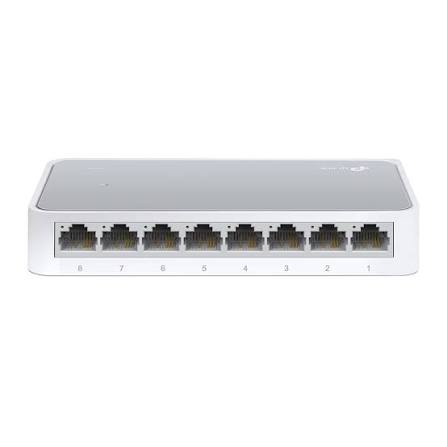
TP-Link
8-Port | Fast Ethernet | Unmanaged
In Stock
TP-Link
8-Port | Gigabit | Unmanaged
In Stock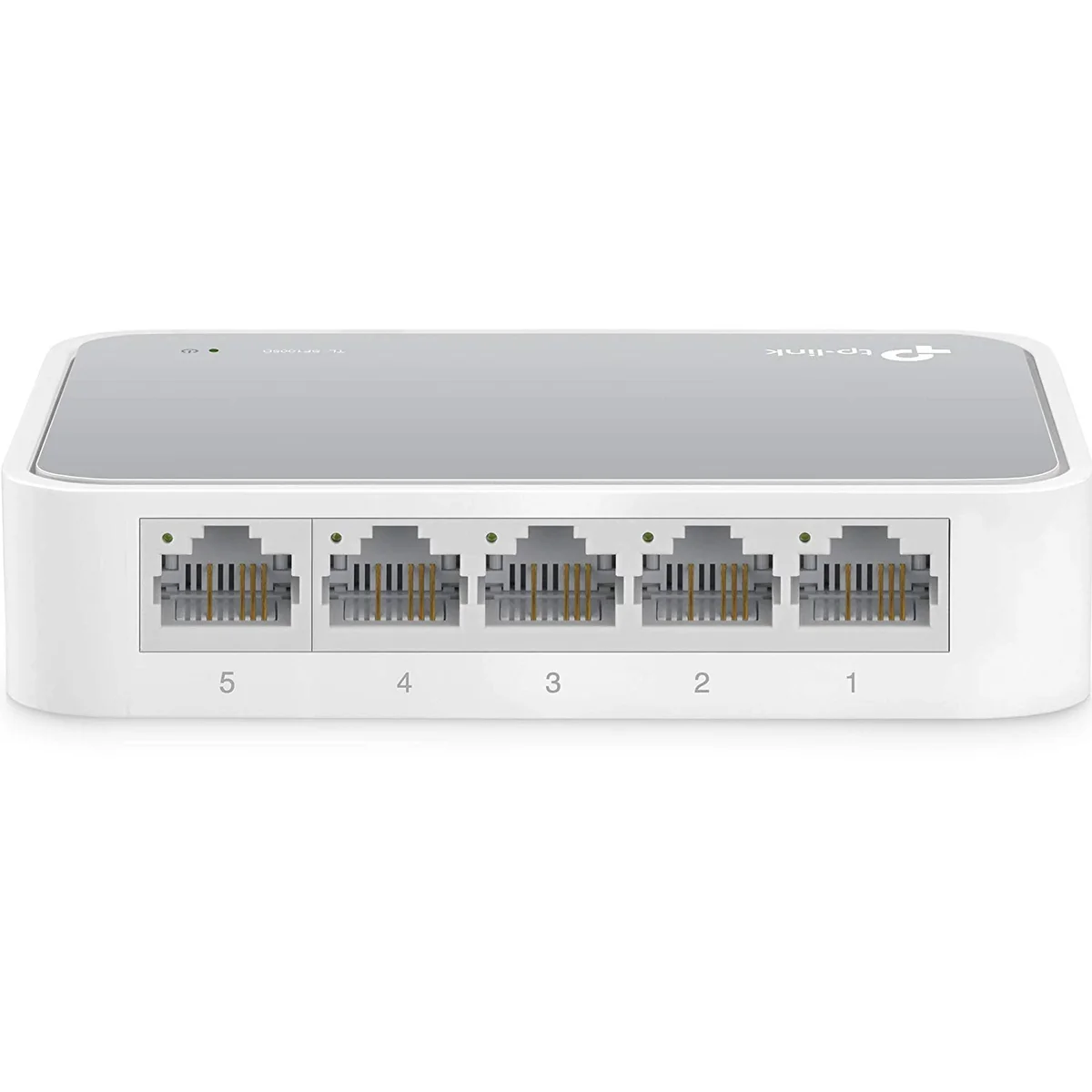
TP-Link
5-Port | Fast Ethernet | Unmanaged
In Stock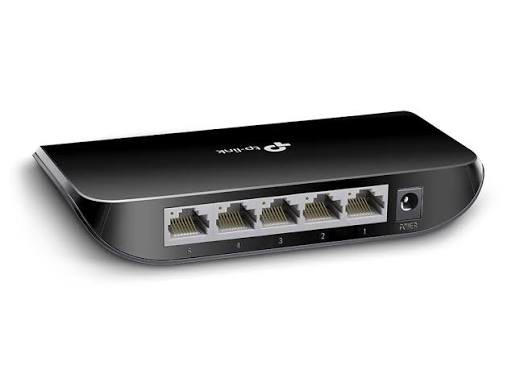
TP-Link
5-Port | Gigabit | Unmanaged
In Stock