Who is this switch best for?
- Office LAN expansion
- CCTV and IP camera networks
- WiFi access point connectivity
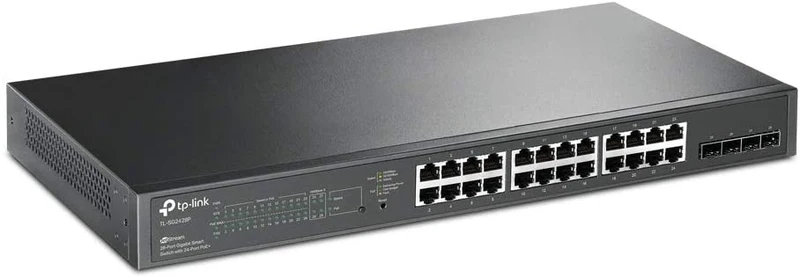
Works with standard Ethernet networking equipment including routers, computers, IP cameras, access points and servers. Confirm port, PoE and mounting requirements before purchase.
Check the product label or manufacturer datasheet for exact input voltage, power adapter and PoE requirements.
The TP-Link TL-SG2428P combines Gigabit Ethernet, power for compatible devices and configurable network management in a rackmount switch. It suits offices, schools, hotels, retail premises and surveillance installations connecting access points, IP phones, cameras and ordinary Ethernet equipment.
It provides 24 Gigabit PoE+ ports and four additional Gigabit SFP interfaces, giving you 28 independent data connections. Its 250W shared PoE budget helps centralize endpoint power while reducing the need for individual adapters beside compatible devices. Omada by TP-Link
Request the current TP-Link TL-SG2428P price in Kenya from Network Switch Kenya, including suitable modules, cabling, backup power and installation services.
The TL-SG2428P supports local administration and integration with a compatible Omada management deployment. It provides controls for organizing network traffic and maintaining an installation that needs more flexibility than unmanaged switching.
Its four optical interfaces are Gigabit SFP slots, not 10G SFP+ uplinks. Buyers planning a faster backbone should select equipment around that requirement.
Confirm the exact model and hardware revision before purchase. TP-Link also offers newer SG2428P versions, and specifications or controller compatibility should not be transferred automatically between them.
Specifications follow TP-Link’s TL-SG2428P information. Confirm revision-dependent details and management compatibility against the supplied unit. Omada by TP-Link
PoE simplifies installations where a nearby mains socket would be inconvenient. A compatible camera, phone or access point can receive power and network data through the same Ethernet cable.
Check each endpoint’s required standard and maximum demand. Passive-PoE equipment and higher-power devices should not be assumed compatible.
Gigabit Endpoint ConnectionsGigabit connectivity suits appropriately equipped access points, computers and other Ethernet devices.
Actual performance depends on the complete connection path. Cables, endpoint interfaces, storage and upstream equipment can all limit results.
Installing the switch does not increase the speed supplied by an internet subscription.
Dedicated Fiber InterfacesUsing an optical connection upstream preserves the copper ports for endpoints.
Choose compatible modules and match fiber type, wavelength, connectors and distance at both ends. Do not assume optical accessories are included.
Local or Centralized AdministrationStandalone operation can suit a single installation. Controller-based administration can help manage several supported devices through a common environment.
Compatibility depends on the exact hardware, firmware and controller. For example, TP-Link specifically notes that TL-SG2428P V2 does not support its Omada Cloud-Based Controller; that limitation should not be confused with every other management option. TP-Link
Configurable Network OrganizationManaged controls can separate staff, guest, surveillance and other traffic according to the business’s requirements.
The complete design must also include appropriate addressing, routing and security policies. A VLAN configured on one switch alone does not establish those services.
The shared budget applies to the combined powered-device load. Having 24 powered ports does not mean that every connected endpoint can draw its individual maximum simultaneously.
Hypothetical device loadCombined demand before cable losses16 cameras consuming 8W each128W12 cameras at 10W plus 6 phones at 6W156W10 access points consuming 20W each200W24 devices consuming 15W each360WThe final example exceeds the stated allowance. These are planning illustrations, not guaranteed supported combinations.
Use maximum consumption, account for cable losses and leave headroom. Cameras may draw more when infrared illumination or heaters activate.
A design that operates near the limit during initial testing may not accommodate future equipment or peak demand.
Connect computers, printers, compatible phones and access points from a central rack.
An appropriate gateway supplies internet access and firewall policies.
Hotels and GuesthousesSupport wireless coverage, selected phones and cameras while implementing the required separation between guest and operational networks.
Plan both power demand and upstream traffic capacity.
Schools and Training FacilitiesConnect administrative equipment, access points and surveillance devices.
Allow spare ports and power capacity for future additions.
Retail PremisesBring suitable business equipment together according to a documented network plan.
Payment systems and other sensitive applications should follow the requirements of the complete network and service provider.
IP SurveillanceCentralize compatible camera connections and power.
Recorder channel count, incoming bandwidth and storage capacity remain separate considerations. Test recording and night operation before handover.
These examples show physical connections rather than guaranteed performance.
Traffic crossing an uplink shares its capacity. A high endpoint count does not automatically require more bandwidth, but simultaneous workloads should be assessed.
If the installation requires faster optical uplinks, compare the interface arrangement of alternatives such as the MikroTik CRS326-24G-2S+RM, checking its power capabilities separately.
Read the model and version from the label. Obtain matching firmware and documentation.
For previously configured equipment, preserve the existing settings before making changes. Avoid resetting a production switch simply because its management address is unknown.
2. Prepare the Installation PlanDocument endpoint models, maximum power demand, cable routes, VLANs and uplinks.
Decide which equipment supplies DHCP, routing and firewall policies. Prepare tested Cat5e or Cat6 cables and compatible optical accessories.
3. Mount the SwitchUse the appropriate rack hardware and support cable weight.
Keep ventilation paths clear and allow access for maintenance. Consider fan noise and heat when choosing the equipment location.
Do not apply cooling claims from a newer SG2428P revision to an older TL-SG2428P unit.
4. Connect Mains PowerConnect the correct power cable to a suitable supply.
For backup operation, size a UPS for the switch, powered endpoints and other equipment needed to keep the service running. A separately powered recorder or gateway must also remain operational.
5. Establish One Upstream ConnectionConnect the router’s LAN or an upstream switch through copper Ethernet or a compatible SFP link.
Start with one path. Do not add parallel connections until the appropriate aggregation or loop-prevention arrangement is configured.
6. Access ManagementCheck the DHCP server’s lease list if the switch receives an address automatically.
For isolated setup, follow the revision-specific default procedure. TP-Link’s general standalone switch guidance uses 192.168.0.1 and an example computer address of 192.168.0.100/24.
Follow the initial account prompts; older firmware may use admin/admin, which should be changed immediately. Avoid address conflicts with existing equipment. support.omadanetworks.com
7. Choose Standalone or Controller ManagementFor local administration, retain standalone operation and secure the management interface.
For Omada management, confirm compatibility, select the correct site and follow adoption instructions. Review how adoption affects existing local settings before proceeding.
Keep ownership under the organization’s authorized account.
8. Secure Administrative AccessAssign a recognizable name and predictable management address.
Restrict administration to appropriate users and networks. Maintain a recovery path while changing management VLANs or access restrictions.
9. Review FirmwareUse software intended for the exact revision and region.
Back up settings, review upgrade instructions and maintain stable power. Schedule changes when an interruption is acceptable.
10. Configure VLANsFor a typical segmented installation:
Test each segment before moving the complete installation.
11. Configure Routing Only Where NeededIf using static routing, establish the intended interfaces and routes according to the applicable guide.
Check return routes and endpoint gateways. Test security policies separately rather than assuming routing creates restrictions.
12. Connect Powered Devices GraduallyAdd endpoints individually and inspect their power status.
Verify compatibility and remaining allocation before connecting the full load. Configure cameras, phones and access points separately.
13. Configure Resilience CarefullyApply supported aggregation and loop-protection settings according to the network plan.
Both ends of an aggregated connection must agree. Aggregation does not guarantee that one transfer uses the combined speed of every member link.
14. Save, Test and DocumentRetain settings using the documented procedure and create a backup.
Test simultaneous workloads and peak endpoint demand. Label cables and record port assignments, management details and optical accessories.
For another managed PoE platform, review the UniFi Standard 24 PoE and UniFi Pro 24 PoE. Compare powered-port counts, shared budgets, uplinks and management requirements.
Orbitlink Solutions also lists the USW-24-PoE and USW-Pro-24-PoE.
Where integrated power is unnecessary, assess the UniFi Standard 24 or UniFi Pro 24 as different options.
For straightforward expansion, compare the TP-Link TL-SG1024D at Orbitlink Solutions, D-Link DGS-1024D at Tawa and Tawa’s separate 24-port Gigabit listing.
Reisen SEO lists the TP-Link TL-SG1024, TL-SG1024D and D-Link DGS-1024D. These address simpler requirements where integrated power and managed controls are unnecessary.
You can also explore the TP-Link TL-SG1024 on Network Switch Kenya.
Fast Ethernet equipment belongs to a different speed category. Relevant listings include the TL-SF1024D at Orbitlink Solutions and TL-SF1024 at Tawa.
Tawa also lists the D-Link DES-1024D unmanaged model and a separate DES-1024D desktop product.
Additional comparisons include the DES-1024D at Reisen SEO and TP-Link TL-SF1024. Check speed, management and power capabilities before selecting an alternative.
Confirm the quotation includes the correct mains cable, rackmount kit and documentation.
Specify SFP modules, fiber leads, Ethernet cables, UPS equipment and installation services separately unless expressly included. Verify hardware revision, product condition and warranty coverage before ordering.
Yes, subject to compatible endpoint requirements and the shared allowance.
Are the four SFP slots additional connections?Yes. They are dedicated optical interfaces rather than shared combo pairs.
Does it have 10Gbps uplinks?No. Its optical interfaces are Gigabit SFP.
Can it power 24 access points?Only if their individual requirements and combined maximum demand fit the available budget. Port count alone is insufficient.
Is an Omada controller mandatory?No. Standalone management is available.
Is the newer SG2428P identical?Do not assume so. Confirm the exact model, revision and applicable documentation.
Contact Network Switch Kenya for a quotation on the TP-Link TL-SG2428P 24-Port Gigabit Omada PoE+ Switch. Share endpoint models, maximum power requirements and uplink distances to confirm suitable equipment and accessories.
TP-Link TL-SG2428P 24-Port Gigabit Omada PoE+ Switch Price in Kenya is currently listed as available. Stock can change, so confirm availability before placing a large order.
The current listed price is KSh 26,000.00. Prices are generated from the product catalogue and may change when inventory is updated.
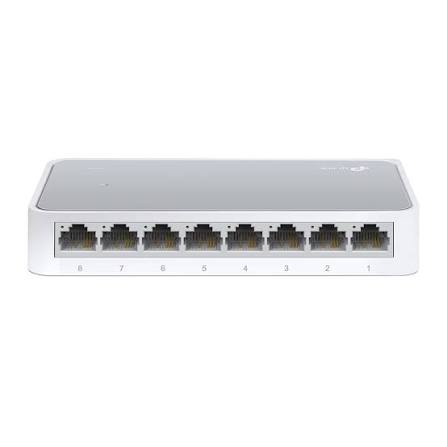
TP-Link
8-Port | Fast Ethernet | Unmanaged
In Stock
TP-Link
8-Port | Gigabit | Unmanaged
In Stock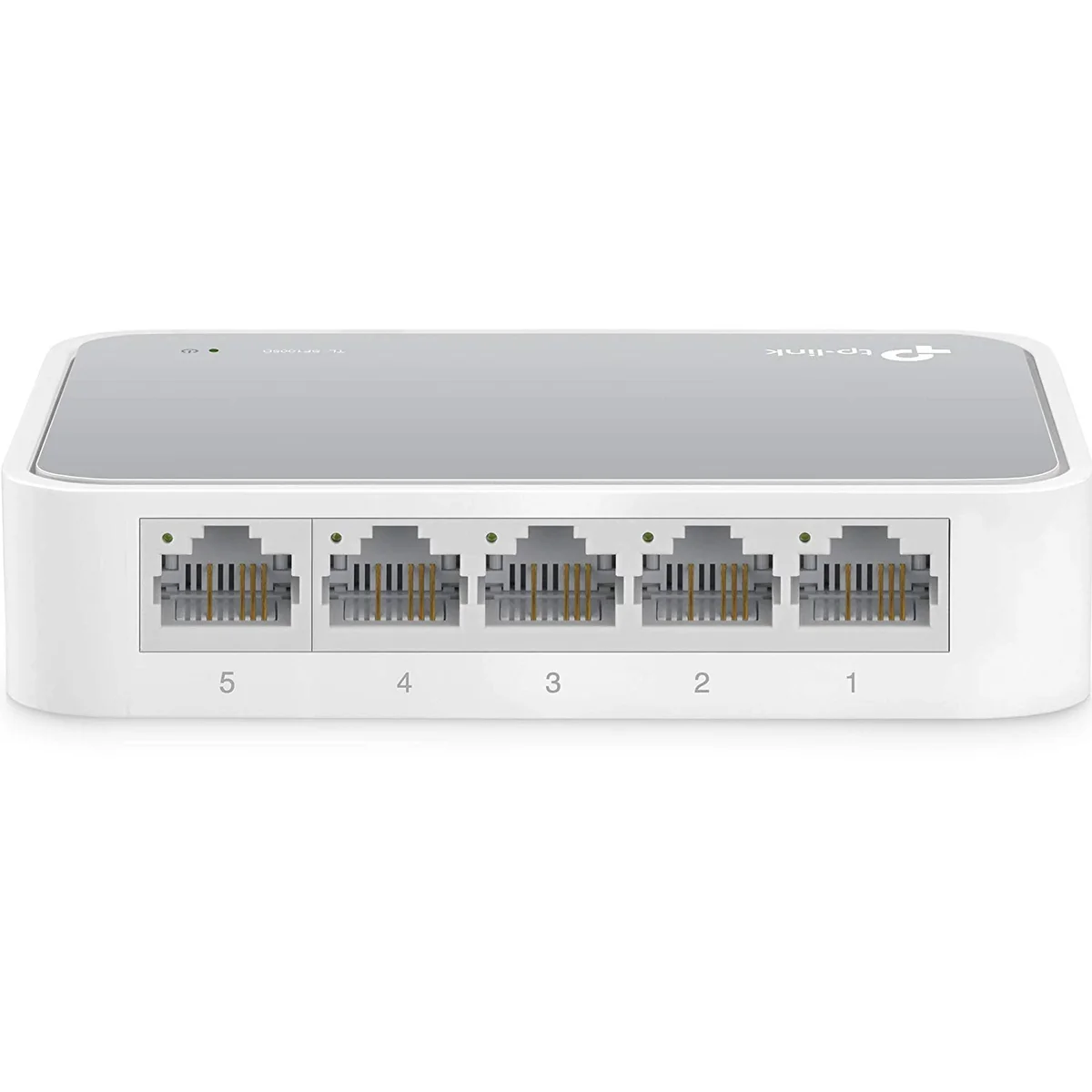
TP-Link
5-Port | Fast Ethernet | Unmanaged
In Stock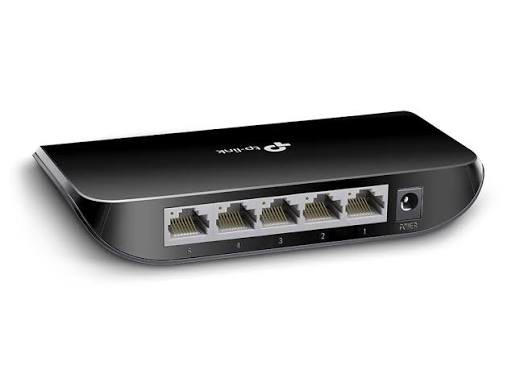
TP-Link
5-Port | Gigabit | Unmanaged
In Stock