Who is this switch best for?
- Office LAN expansion
- CCTV and IP camera networks
- WiFi access point connectivity
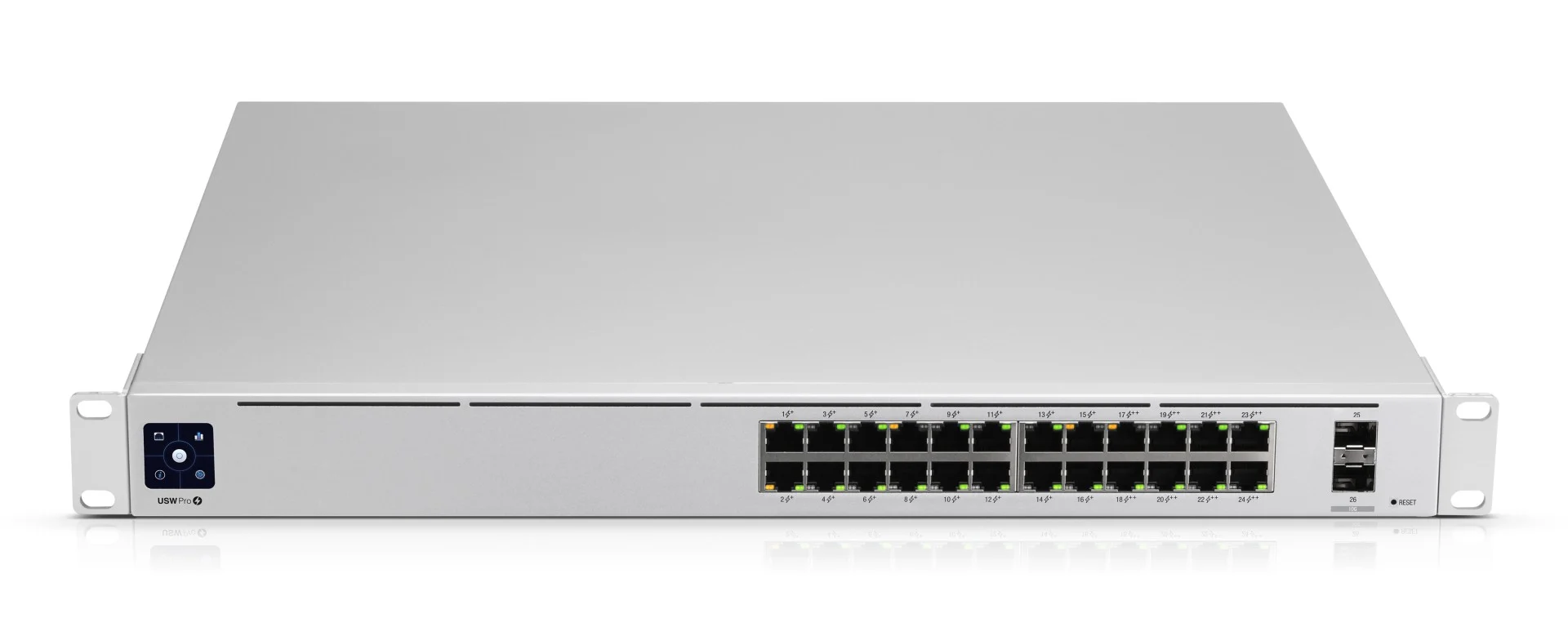
Works with standard Ethernet networking equipment including routers, computers, IP cameras, access points and servers. Confirm port, PoE and mounting requirements before purchase.
Check the product label or manufacturer datasheet for exact input voltage, power adapter and PoE requirements.
The Ubiquiti UniFi Switch Pro 24 PoE, model USW-Pro-24-PoE, combines powered Ethernet connections, high-speed uplinks and centralized management for business networks. It suits offices, schools, hotels, retail premises and surveillance installations connecting compatible access points, cameras and IP phones.
It provides 24 Gigabit Ethernet ports, comprising 16 PoE+ ports and eight higher-power PoE++ ports, alongside two dedicated 10G SFP+ uplinks. A 400W shared PoE budget supports the combined powered-device load. Tech Specs
Request the current Ubiquiti UniFi Switch Pro 24 PoE price in Kenya from Network Switch Kenya, including compatible uplink accessories, backup power and installation services.
The USW-Pro-24-PoE is a managed switch administered through UniFi Network. It provides a central connection point for endpoints while allowing administrators to configure the network through a supported UniFi deployment.
Its higher-power connections accommodate compatible equipment requiring more power than ordinary PoE+ can provide. However, not every port offers the same maximum output, and all powered devices share the total allowance.
Confirm the exact USW-Pro-24-PoE model before ordering. It differs from the Standard 24 PoE, non-PoE Pro 24 and Pro Max models.
Specifications follow Ubiquiti’s current technical information and hardware guide. Tech Specs
PoE reduces the need for separate mains adapters beside cameras, access points and phones. This is useful for equipment mounted on ceilings, walls or other locations away from convenient sockets.
Check the endpoint’s required standard and maximum consumption before assigning its port. Equipment requiring PoE++ must use a suitable higher-power connection.
Passive-PoE equipment should not be assumed compatible merely because it has an Ethernet connector.
Dedicated Faster UplinksThe SFP+ interfaces can connect suitably equipped gateways, switches or servers without occupying copper endpoint ports.
A faster uplink is useful when several endpoints share access to resources elsewhere. It does not increase an individual copper endpoint’s connection above Gigabit speed.
Unified AdministrationUniFi Network provides a common environment for administering supported switches, access points and other network equipment.
Plan where the application will run, who owns the deployment and how backups and administrator access will be maintained. Remote administration requires appropriate connectivity.
Local Routing CapabilitiesSupported Layer 3 functions can serve a planned local network design. Determine which equipment handles routing, addressing and access policies before deployment.
These functions do not replace a complete internet firewall. Avoid assuming that every gateway service is available on the switch.
Optional Power RedundancyThe backup input connects to a compatible UniFi SmartPower Redundant Power System, USP-RPS, using the appropriate cable. This is separate equipment, not a second internal power supply. dl.ui.com
An RPS and a UPS address different requirements. Backup runtime during a site power outage still depends on the installation’s power design.
The hardware guide identifies these port groups. dl.ui.com
Do not assign equipment solely by the number of available sockets. Match the required power type and maximum demand first.
The per-port maximum and total allowance are separate limits. Every port cannot necessarily supply its individual maximum simultaneously.
Hypothetical device loadCombined demand before cable losses16 cameras consuming 10W each160W16 devices at 10W plus 4 devices at 40W320W24 devices consuming 20W each480WThe final example exceeds the stated shared allowance. These are planning illustrations, not guaranteed supported configurations.
Use each device’s maximum requirement, account for losses and leave headroom. Camera illumination, heaters and other endpoint functions can increase demand beyond an initial daytime test.
Connect compatible access points alongside workstations and phones. Assign demanding powered equipment to suitable ports and check the complete load.
IP SurveillanceCentralize camera power and data while connecting to the recording network through an appropriate uplink.
Check recorder channels, incoming bandwidth and storage independently of switch capacity.
Hotels and GuesthousesSupport selected phones, cameras and access points while implementing the required separation between guest and operational networks.
Schools and Commercial PremisesBring distributed endpoints into a central equipment rack. Document cable routes, port assignments and power requirements for maintenance.
Existing UniFi DeploymentsAdd connections within a supported management environment. Review application and firmware compatibility before introducing the switch.
List every endpoint, required PoE standard and maximum consumption.
Assign higher-power devices to suitable ports. Identify uplinks, management addressing and any VLAN requirements.
Decide which device provides routing, DHCP and firewall policies.
2. Prepare UniFi NetworkUse a supported UniFi Network deployment and select the correct site.
Keep ownership under the organization’s authorized account. Back up an existing site before making significant changes.
3. Install the SwitchMount it in a suitable rack using the specified hardware. Support cable weight and leave ventilation paths clear.
Consider heat and operating noise when choosing the rack location. Keep the switch indoors in an appropriate equipment environment.
4. Connect PowerConnect the supplied mains cable to a suitable supply.
Size any UPS for the switch’s operating load, connected powered equipment and other devices needed to maintain service. Add a compatible RPS separately if the design requires it.
5. Establish One Upstream ConnectionConnect the switch to the management network using a suitable copper or SFP+ connection.
For high-speed links, choose compatible modules or direct attach cables and verify both ends. Begin with one upstream path.
6. Adopt the SwitchEnsure the switch can obtain appropriate addressing and reach the UniFi Network host.
Identify it in the device list and complete adoption. For previously managed equipment, arrange an authorized migration rather than immediately resetting it.
Keep a local recovery path while changing the management network.
7. Secure Management AccessAssign a recognizable name and document the management address.
Restrict administrative permissions and protect the account used to manage the deployment. Confirm recovery arrangements before handing over the system.
8. Review FirmwareCheck the installed version and applicable release information.
Preserve backups, schedule updates when interruption is acceptable and maintain stable power. Allow adoption, provisioning and updates to finish before disconnecting equipment.
9. Configure VLANs and PortsFor each connection, define the intended network arrangement:
Match the configuration on connected equipment. Test management access before applying restrictive changes broadly.
10. Configure Routing DeliberatelyIf using supported local routing, confirm the intended gateway assignments, addressing services and return paths.
Test access policies separately. Creating a route does not automatically create the security restrictions a business requires.
11. Connect PoE Devices GraduallyAdd equipment one device at a time and inspect power status.
Use suitable ports for higher-demand endpoints. Investigate failures by checking compatibility, cabling and remaining allocation rather than repeatedly restarting equipment.
12. Configure Redundant Links CarefullyIf using aggregation, confirm support at both ends and apply the required configuration before connecting parallel links.
Aggregated links distribute suitable traffic flows; they do not guarantee that one transfer uses the combined speed of every connection.
13. Test Expected WorkloadsCheck cameras, calls, wireless clients and local resources simultaneously.
Test endpoint peak-demand functions, including night operation where relevant. Watch for errors, link changes or unexpected restarts.
14. Back Up and DocumentRetain a UniFi Network backup, port map and endpoint power inventory.
Label cables and record uplink accessory models. Store administrative recovery information securely.
For a different power or uplink requirement, compare the UniFi Standard 24 PoE with the UniFi Pro 24 PoE listing. Verify the exact model on the quotation.
Orbitlink Solutions also lists the USW-24-PoE and USW-Pro-24-PoE. Compare powered-port counts, budgets and interfaces.
Where integrated power is unnecessary, review the UniFi Standard 24 or UniFi Pro 24.
For another managed approach, assess the MikroTik CRS326-24G-2S+RM, checking its power capabilities and configuration requirements separately.
For basic unmanaged expansion, compare the TP-Link TL-SG1024D at Orbitlink Solutions, D-Link DGS-1024D at Tawa and Tawa’s separate 24-port Gigabit listing.
Reisen SEO lists the TP-Link TL-SG1024, TL-SG1024D and D-Link DGS-1024D. These address different requirements from a managed high-power PoE installation.
Fast Ethernet products belong to a different speed category. Relevant listings include the TL-SF1024D at Orbitlink Solutions and TL-SF1024 at Tawa.
Tawa also lists the D-Link DES-1024D unmanaged model and a separate DES-1024D desktop product.
Additional comparisons include the DES-1024D at Reisen SEO and TP-Link TL-SF1024. Check speed, management and power capabilities rather than total port count alone.
For an internal comparison, explore the TP-Link TL-SG1024 on Network Switch Kenya.
Confirm the quoted package includes the mains cable, rack brackets and associated mounting hardware.
Specify optical modules, direct attach cables, fiber leads, UPS equipment, RPS equipment and installation services separately unless expressly included. Verify product condition and warranty terms before ordering.
Yes, subject to compatibility and the shared allowance. Their maximum power categories differ.
Which ports support PoE++?Ports 17–24 are the higher-power group.
Does it have 10Gbps connections?Yes, through its two SFP+ interfaces with suitable accessories.
Is the RPS included?Do not assume so. The compatible RPS and cable must be specified separately.
Can it power equipment from other manufacturers?Yes, where the required PoE standard and power demand are compatible.
Does it provide Wi-Fi?No. Connect separate access points for wireless coverage.
Contact Network Switch Kenya for a quotation on the USW-Pro-24-PoE. Share endpoint models, maximum power requirements and uplink distances to confirm suitable port assignments and accessories.
Ubiquiti UniFi Switch Pro 24 PoE Price in Kenya is currently listed as available. Stock can change, so confirm availability before placing a large order.
The current listed price is KSh 98,000.00. Prices are generated from the product catalogue and may change when inventory is updated.
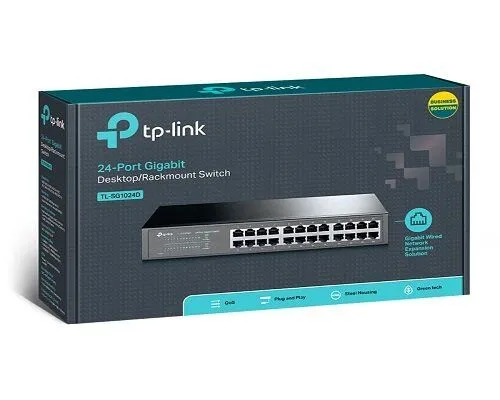
TP-Link
24-Port | Gigabit | Unmanaged
In Stock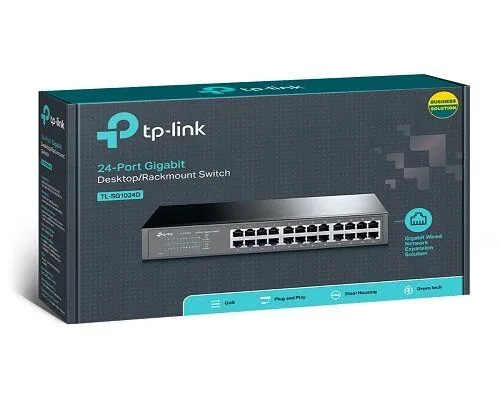
TP-Link
24-Port | Gigabit | Unmanaged
In Stock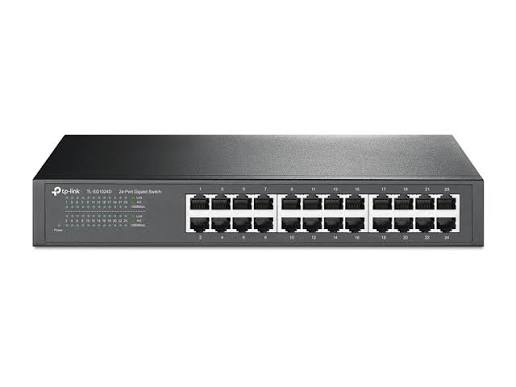
TP-Link
24-Port | Fast Ethernet | Unmanaged
In Stock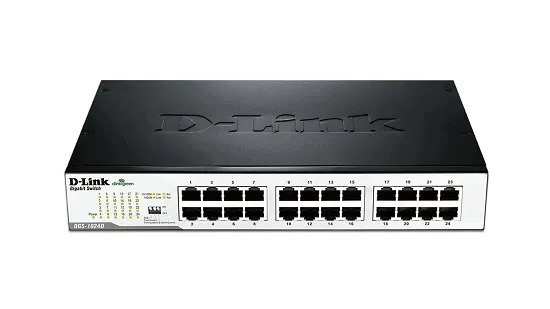
D-Link
24-Port | Fast Ethernet | Unmanaged
In Stock